Income Certificate in UP — Apply Online on eSathi
What is an income certificate?
An income certificate (आय प्रमाण पत्र, aay praman patra) is an official document issued by the Uttar Pradesh revenue department that certifies the annual income of a person or family. It states, in writing and with the digital signature of the Tehsildar, how much the family earns in a year from all sources combined.
You will be asked for this certificate in many everyday situations:
- Scholarships and fee concessions — UP scholarship schemes and school or college fee waivers are income-tested, and this certificate is the standard proof.
- EWS reservation — the Economically Weaker Section quota in jobs and admissions requires income proof below the prescribed limit.
- Government schemes and pensions — widow pension, old-age pension and many welfare schemes check family income before approving benefits.
- Loans and subsidies — banks and departments ask for it for education loans, housing subsidies and similar assistance.
The good news is that you no longer need to visit the tehsil office repeatedly. The entire process — application, tracking and download — happens online on the eSathi portal (esathi.up.gov.in), which is the citizen front-end of eDistrict UP. This guide covers the documents, the exact steps, the fees, and what to do if your application gets stuck or rejected.
Income certificate at a glance
| Fee via eSathi (self-apply) | ₹10–15 |
|---|---|
| Fee via CSC | ₹30 + ₹30–50 facilitation charge |
| Processing time | 7–15 working days |
| Validity | 3 years from the date of issue |
| Where to apply | esathi.up.gov.in (Citizen Login on edistrict.up.gov.in) |
| Issued by | Tehsildar of your tehsil, after Lekhpal verification |
| Helpline | 0522-2304706 · ceghelpdesk@gmail.com |
Documents required for an income certificate
Keep clear scans or photos of the following ready before you start. Preparing them in advance is the simplest way to avoid a rejection.
- Aadhaar card of the applicant
- Recent passport-size photograph
- Ration card (family details and income group are cross-checked against it)
- Self-declaration form (swa-pramanit ghoshna patra), filled and signed — upload as JPEG
- Income proof matching your occupation: salary slip or employer certificate for salaried applicants
- Bank statement or passbook pages (useful for pensioners and self-employed applicants)
- For agricultural income: khatauni or land records showing the holding
- For business income: any available proof such as a trade licence or previous ITR, if filed
How family income is calculated
Many applicants are confused about whose income goes into the certificate. The rule is simple: the certificate covers the total annual income of the whole family from every source. That includes the earnings of the applicant, spouse and other earning members living in the same household — salary, pension, farming income, business or shop income, rent from property, and any other regular earning.
A few practical points:
- Students: a student usually has no income of their own, so the application is made by a parent or guardian and the parents' income is certified. This is the certificate scholarship forms ask for.
- Joint families: if several brothers live together as one household with a single ration card, their combined income is generally counted together.
- Honesty matters: during field verification the Lekhpal asks neighbours and checks local records. Declaring far less than the visible reality — a large house, vehicles, a running shop — invites queries and rejection.
Add up one full year of income from every source before filling the form, and enter figures you can support with the documents you are uploading.
How to apply for an income certificate online — step by step
Create your eSathi account (first-time users)
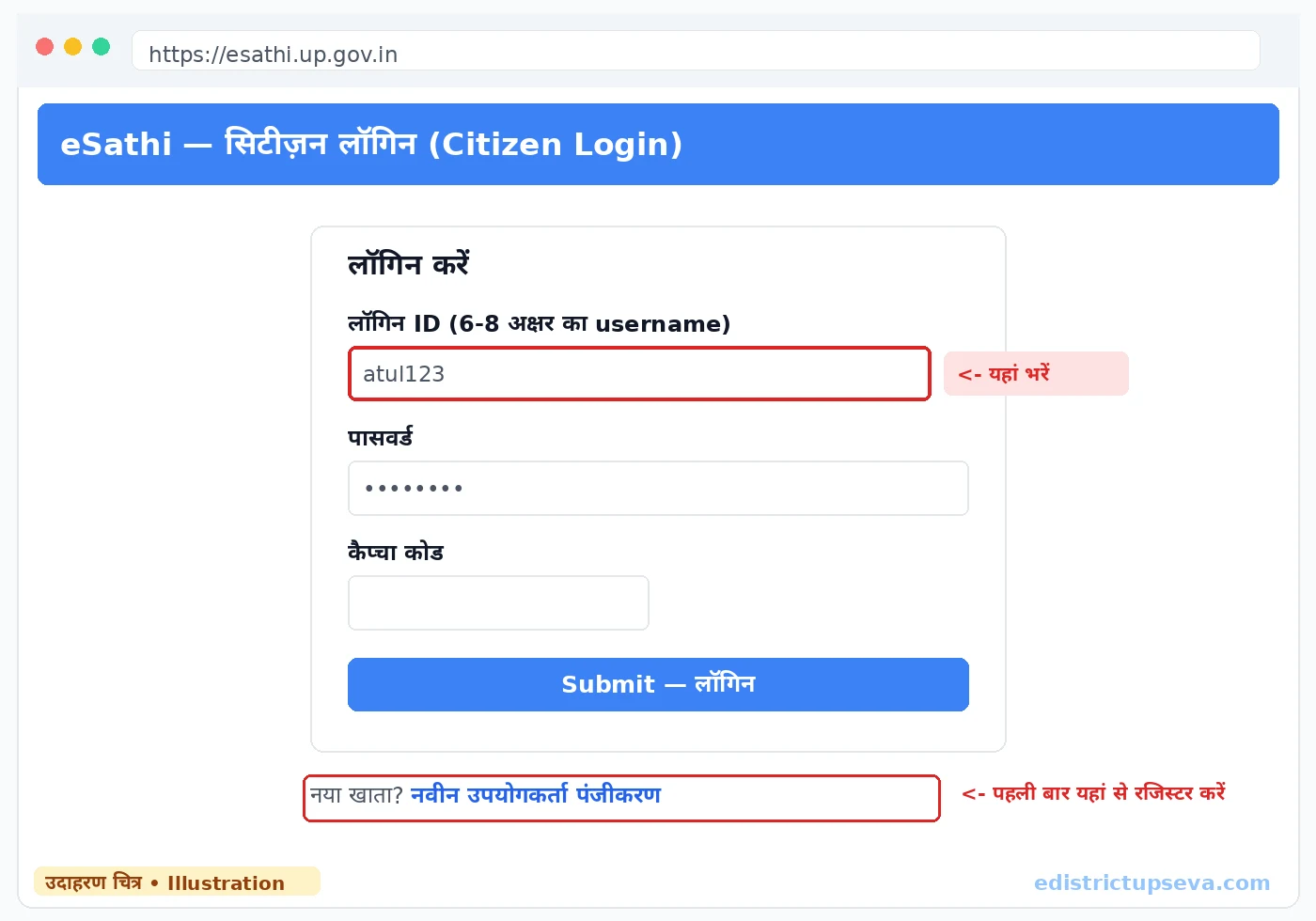
Open esathi.up.gov.in and click "New User Registration" (नवीन उपयोगकर्ता पंजीकरण). Fill in your name exactly as on Aadhaar, date of birth, address with district and PIN, and a mobile number linked to Aadhaar. Create a login ID of 6–8 characters (letters and numbers, e.g. ram2026) and check its availability. Verify the Aadhaar OTP, then log in once with the OTP as a temporary password and set a permanent password. If you already have an account, skip to the next step.
Log in and open certificate services
Log in with your login ID, password and captcha. On the dashboard, open the certificate services section (प्रमाण पत्र सेवाएं) where all revenue department certificates are listed.
Select "Income Certificate"
Choose the income certificate (आय प्रमाण पत्र) service from the list. Read the service information shown on screen — it repeats the document list and fee for this specific certificate.
Fill the application form
Enter the applicant's details: name, father's or husband's name, date of birth, gender, full address with district, tehsil, block and village or ward. Then fill the income section carefully — income from each source (salary, agriculture, business, pension, other) and the total annual family income. The total in the form must match the figure in your self-declaration.
Choose rural or urban correctly
Select whether the address is rural (ग्रामीण) or urban (नगरीय) based on where you actually live. This decides whether the Lekhpal or the Revenue Inspector handles your verification, and choosing the wrong one is a frequent cause of files going back and forth.
Upload the documents
Upload each document in its own field: photograph, Aadhaar, ration card, income proof and the signed self-declaration as JPEG. Check every file is under 100KB and that the text is readable when you zoom in. A blurry upload is the single most common reason income applications are returned.
Review and submit
Go through the preview once — names should match Aadhaar spellings, the income total should match your declaration, and the mobile number should be one you actually use, because updates come by SMS. Then submit the application.
Pay the fee through PAYGOV
Pay the ₹10–15 fee online through the PAYGOV gateway using UPI, net banking or a debit card. If money is debited but the payment shows "pending", do not pay again — such cases normally reconcile on their own within 24–48 hours.
Save your SRN
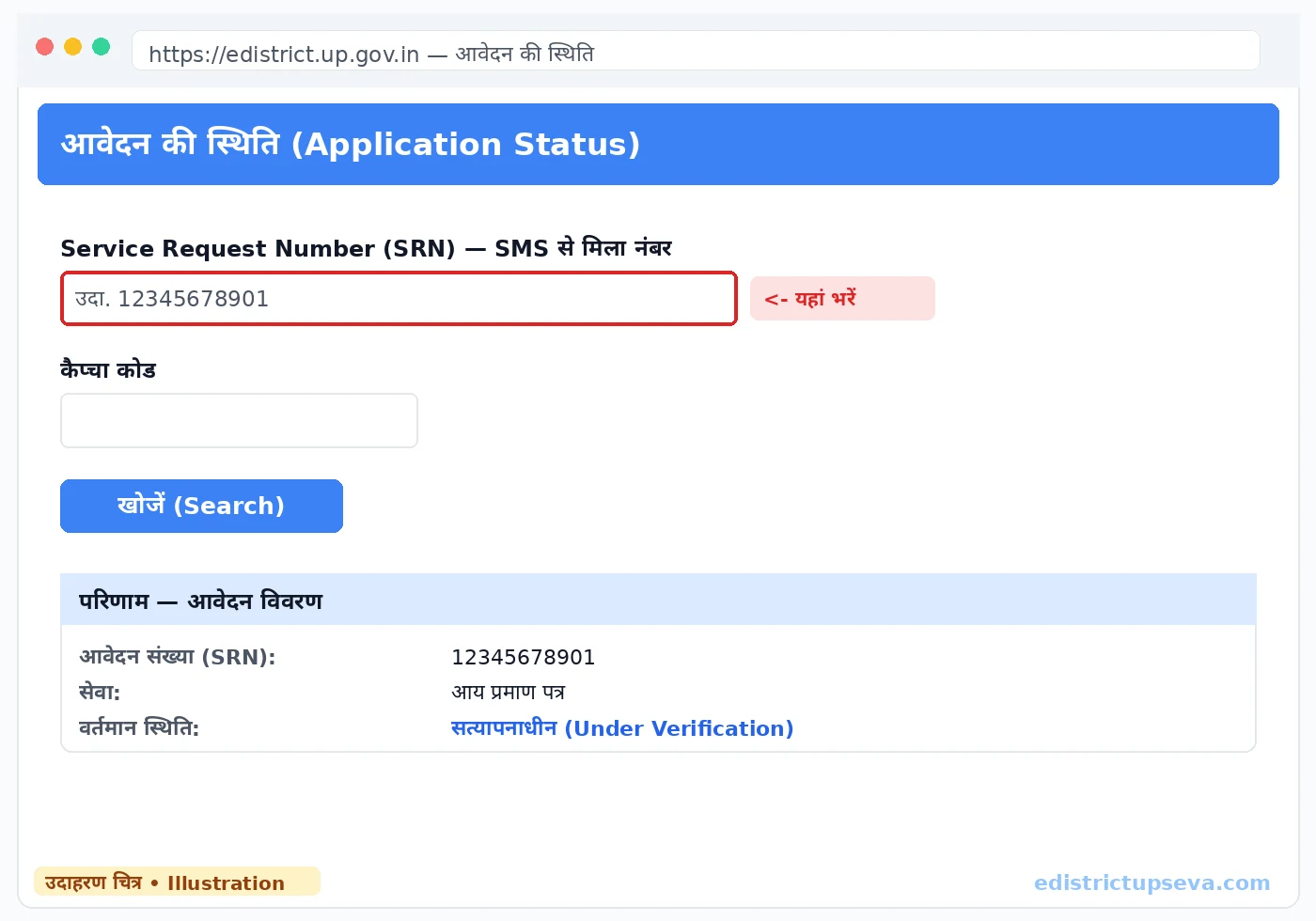
After payment, the portal issues a Service Request Number (SRN), also sent by SMS. Note it down or take a screenshot — you need the SRN to track the application without logging in, and the helpline will ask for it if anything goes wrong.
Fees: applying yourself vs through a CSC
| Route | Government fee | Extra charges | Total you should pay |
|---|---|---|---|
| eSathi (self-apply online) | ₹10–15 | None | ₹10–15 |
| CSC / Jan Seva Kendra | ₹30 | ₹30–50 facilitation | ₹60–80 |
Applying yourself is cheaper and you keep control of your own login ID and password. Use a CSC only if you have no smartphone or computer access — and even there, never share your eSathi password with the operator; their job is to fill the form on your behalf through their own operator login.
Check status and download the certificate
Once the status of your application shows Certificate Generated, your income certificate is ready. You can track it any time with your SRN on the portal — the full method, and the meaning of every status label such as Under Verification or Approved, is explained in the status check section of the homepage guide.
To download: log in to eSathi → open Completed Applications → click your application → press Print → choose Save as PDF in the browser print dialog. This digitally signed PDF, with its certificate number and QR code, is the original certificate — print as many copies as you need. It also appears under Issued Documents in DigiLocker after a few days. Note that "Approved" and "Certificate Generated" are different stages; if it only shows Approved, wait 24–48 hours for the signed PDF to be generated.
Common rejection reasons — and how to fix them
- Self-declaration missing or unsigned — the most frequent cause. Fill the form completely, sign it, and upload a clear JPEG.
- Income figures do not match — the total in the online form, the self-declaration and your income proof must agree. Recalculate and resubmit with consistent figures.
- Blurry or oversized documents — rescan at around 200 DPI in black and white, keep each file under 100KB.
- Name mismatch with Aadhaar — even a spelling difference slows verification. Use exactly the Aadhaar spelling everywhere.
- Wrong rural/urban selection — the file goes to the wrong verifying officer. Pick the category that matches your actual address.
- Lekhpal could not verify — if nobody was available at the address during the field visit, the report can go against you. Keep someone informed at home during the expected verification days.
A rejection is not a punishment and carries no penalty. Read the remark in your eSathi account, correct the specific problem, and apply again. If your file stays "Under Verification" for more than 15 working days, file a complaint on the portal or call the helpline at 0522-2304706 with your SRN ready.
Related guides
- Caste Certificate in UP — SC/ST and OBC Non-Creamy Layer certificates, documents and validity explained.
- Domicile Certificate in UP — residence conditions and the online application process.
- Self-Declaration Form — the mandatory declaration for income, caste and domicile applications, with format guidance.
- CSC / Jan Seva Kendra Guide — how to apply through a CSC and how to avoid overcharging.
Frequently Asked Questions
Who can apply for an income certificate in UP?
How much does an income certificate cost in UP?
How long is a UP income certificate valid?
How many days does it take to get an income certificate?
What income is counted in the certificate?
My income certificate application was rejected. What should I do?
Can I download the income certificate online?
Is the self-declaration compulsory for an income certificate?
Last updated: 22 October 2026